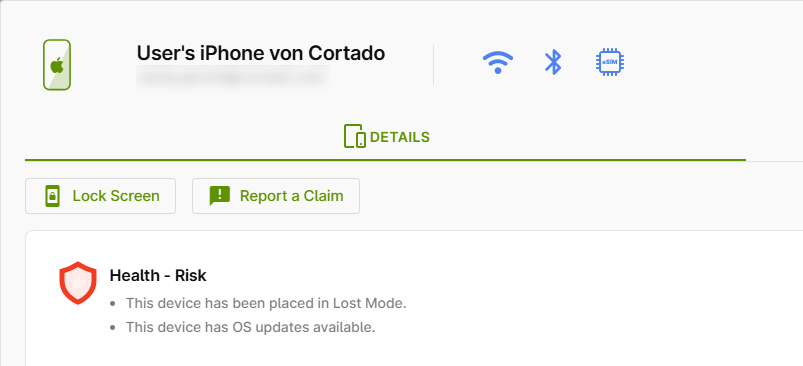
In Cortado's new administration portal, you can see the status of your entire device fleet at a glance. An intuitive traffic light system—from green (everything OK) to orange (action recommended, e.g., OS update or locked device) to red (problem detected, e.g., non-compliant password)—shows you immediately where you need to take action.
- Open device management by clicking on Devices (left column).
- You will now see all devices at a glance.
- You can use the search and filter function to narrow down the selection of devices as desired.
- You can also specify which columns should be displayed in the overview.
- The color indicator in the Health column (marked in the image) allows you to see immediately if there is a problem with a device.
- Click on a device to open the detailed view.
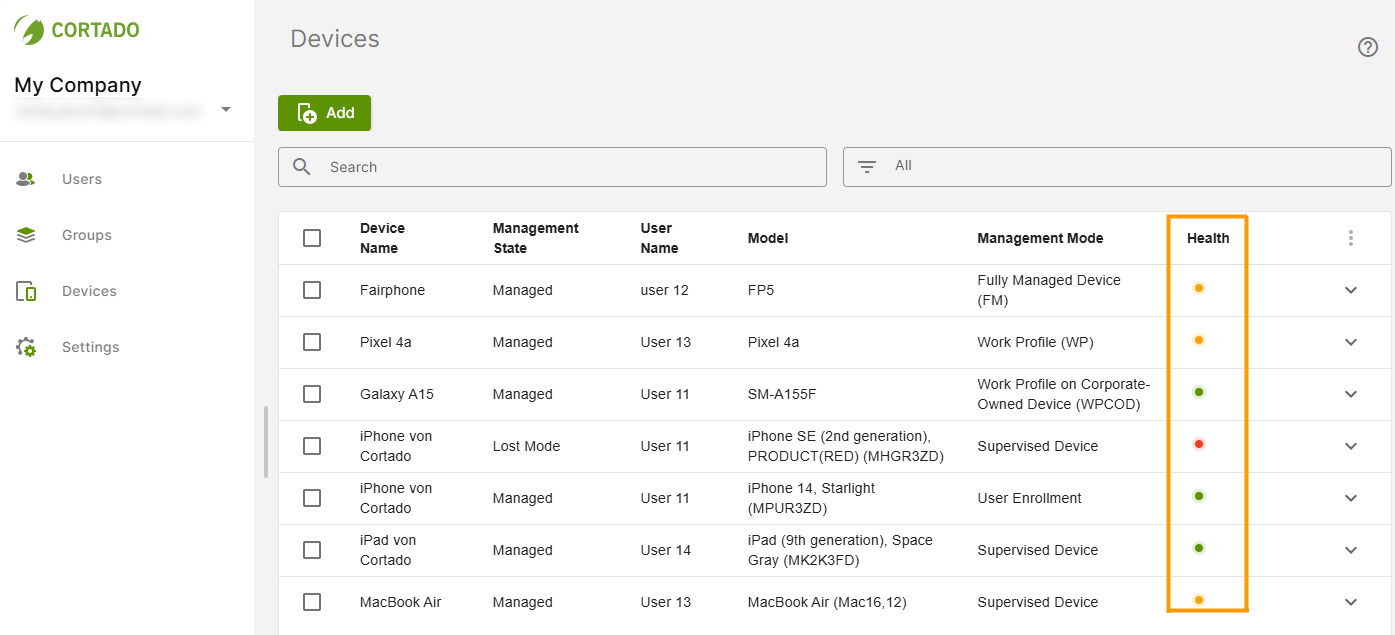
Note! Please note that the Health status indicator (green, orange, red) refers to the status of the device and not to actions triggered via the administration portal. This means that if, for example, a device is put into loss mode via the administration portal, the indicator will only turn red once this message has reached the device and the device has sent a response to the MDM. Depending on the synchronization interval, this may take a while and also depends on whether the device is switched on and online.
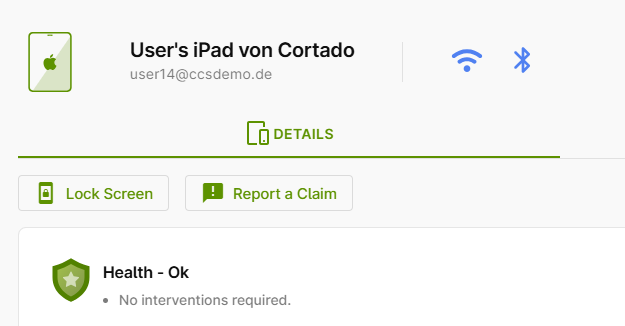
Here you will first find the status display for the device. There are three different statuses (Health – OK (green), Health – Warning (orange), Health – Risk (red)).
Health – OK (green)
If the status indicator is green, then everything is OK with the device. All policies are being enforced, no action is required.
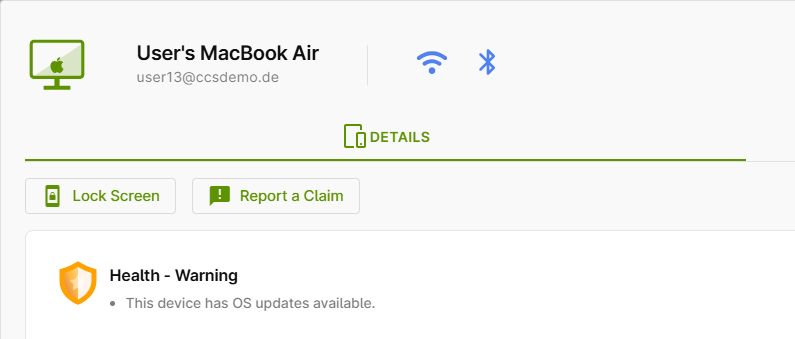
Health – Warning (orange)
If one of the following problems occurs, the status indicator will turn orange:
- "Device workspace is currently locked." – This message is displayed when the workspace of an Android device has been locked in Device Management using the Lock Workspace button.
- "This device has been wiped and is no longer active." – The device has been reset to factory settings either via the administration portal or by the user. For BYOD devices, the work profile has been removed.
- "This device has OS updates available." – If this message is displayed, the update must either be started directly on the device or triggered via a policy.
- "This device has integrity level ‘medium’." (Android only) – This is the integrity level set by Google for this device (usually the case with older devices) and not the integrity level you have set in the settings. If you are using devices with a medium integrity level, adjust the minimum integrity level in the settings accordingly.
- "No integrity check has been performed on this device." (Android only) – These are devices on which Google has not performed an integrity check.
- "The last integrity check was more than 24 hours ago." (Android only) – If the device has been turned off for a long time, Google cannot perform an integrity check. This results in this message.
For more information on setting the integrity level for Android devices, click here.
Health – Risk (red)
If one of the following problems occurs or a policy is not complied with, the status indicator turns red:
- "This device does not have a compliant passcode." – The device does not use a passcode that meets the requirements of the policy.
- "The work profile on this device does not have a compliant passcode." – No passcode that meets the requirements in the policy is used for the work profile.
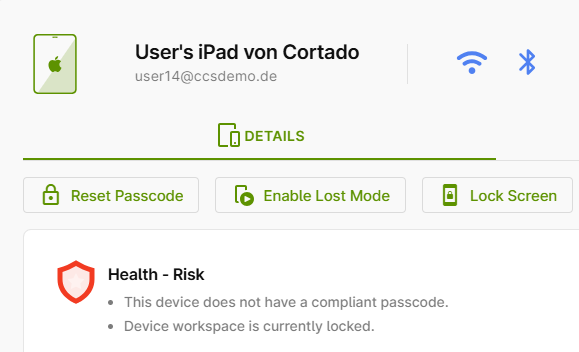
- "This device has been placed in Lost Mode." – Detailed information about loss mode can be found here.
- "This device has integrity level low." (Android only) – This is the integrity level set by Google for this device, not the integrity level you set in the settings. If you are using devices with a low integrity level, change the integration level in the settings accordingly or replace the devices.