The new administration portal is currently in the beta phase. You are welcome to send us your feedback on the new portal using the corresponding button (at the bottom left of the new administration portal). We will show you how to configure a fully managed iOS/iPadOS device in the current portal for use as a COPE device here.
With the help of a few policies, you can configure your fully managed Apple devices so that they can be used for both business and personal purposes (Company Owned Personally Enabled – COPE). The company still has control over the device, but not over the personal area. This area, including its apps, data, and usage, is not visible or accessible to the company.
Allow sign-in with private Apple ID
Separate business and private apps and data
Allow sign-in with private Apple ID
- Before your devices can be used for personal and business purposes, you must register them for Cortado MDM. To do so, follow the steps described in our help article Registering company-owned iOS/iPadOS devices (COBO/COPE).
- In the ADE profile (under Settings→ Apple→ Apple Automatic Device Enrollment→ Setup Steps), check the box for Apple ID setup (arrow in illus.) if necessary. The user can then enter their Apple ID during device setup.
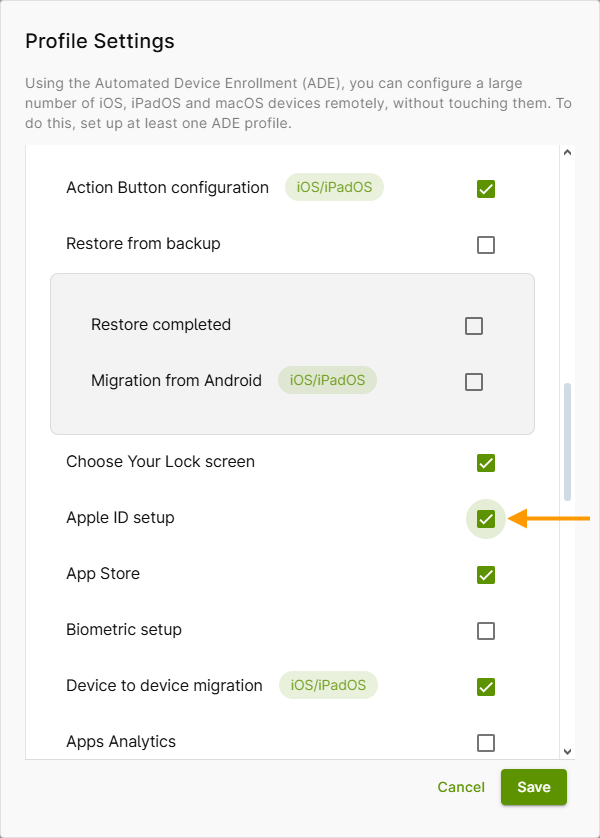
- Users can also set up their Apple ID at any time via the device settings (arrow in illus.).

Separate business and private apps and data
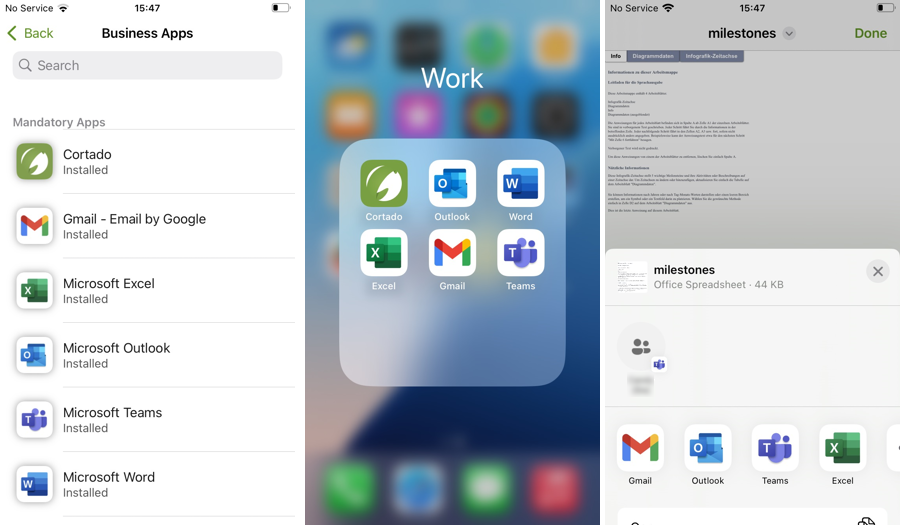
Users of COPE devices can now download private apps to their devices via the App Store. Business apps, on the other hand, are assigned to users via the administration portal. To do this, proceed as described in our help article Import and distribute apps from Apple Business Manager. To prevent the exchange of data between private and business apps and contacts, you must now activate or deactivate some policies.
- To do this, switch to the current Cortado MDM administration portal.
- Create a new policy. To do this, click on the plus icon in the administration portal under Administration→ Policies. Then select iOS/iPadOS.
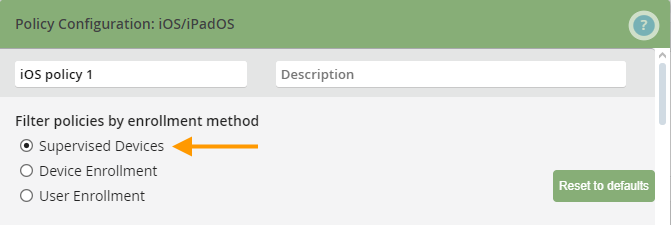
- In the policies, first select the setup method Supervised devices (arrow in illus.).
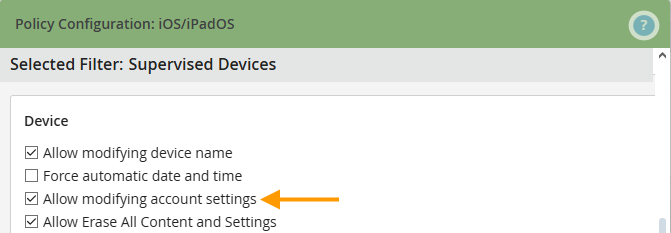
Note! Ensure that the Allow modifying account settings policy (arrow in illus.) is enabled (default setting). Otherwise, the user will not be able to store a private Apple ID on the device.
For the separation of business and private apps and data, you will find a series of policies under Data and container protection. Configure at least the selected policies as follows (see illus.):
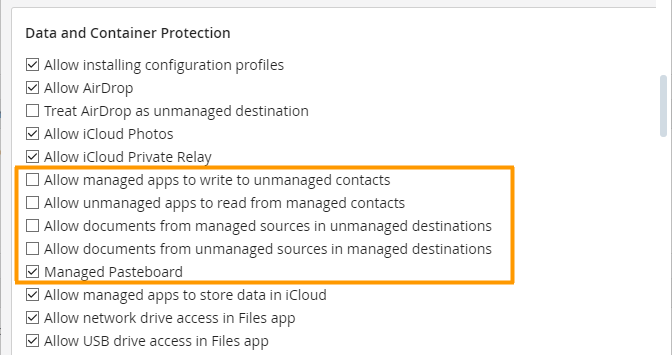
- Uncheck Allow documents from managed sources in unmanaged destinations (second arrow in illus.). Then, when sharing files, users on iOS devices will only be offered those apps that you have made available via the Administration Portal.
- If you also want to prevent data from private apps from entering business apps, uncheck Allow documents from unmanaged sources in managed destinations (third arrow in illus.).
- If you also want to prevent data (e.g. texts) from being copied and pasted back and forth between managed and unmanaged apps, enable the Managed Pasteboard (lower arrow in illus.).
- Also make sure that the checkbox Allow unmanaged apps to read from managed contacts is deactivated (default setting) (upper arrow in illus.). This ensures that private apps (such as WhatsApp) cannot access business contact data. Please also note the information in our How-To How to prevent WhatsApp, Clubhouse and their like from accessing business contacts on iOS.
- Deactivate the Allow managed apps to write to unmanaged contacts policy. This prevents managed apps, such as Outlook, from accessing private contacts.
Note! The Allow unmanaged apps to read from managed contacts policy and the Allow managed apps to write to unmanaged contacts only take effect if the Allow documents from managed sources in unmanaged destinations policy has been deactivated. The Managed Pastboard policy only applies if the Allow documents from unmanaged sources in managed destinations policy has been deactivated.
Now, if the user wants to share a document with another app or export the document there, only business apps will be offered (example in illus.). Thus, private and business data are kept apart from each other.
There are also a number of other policies available here that you can use to prevent data from flowing out via AirDrop, the iCloud or the Files app. Activate/deactivate these policies accordingly.